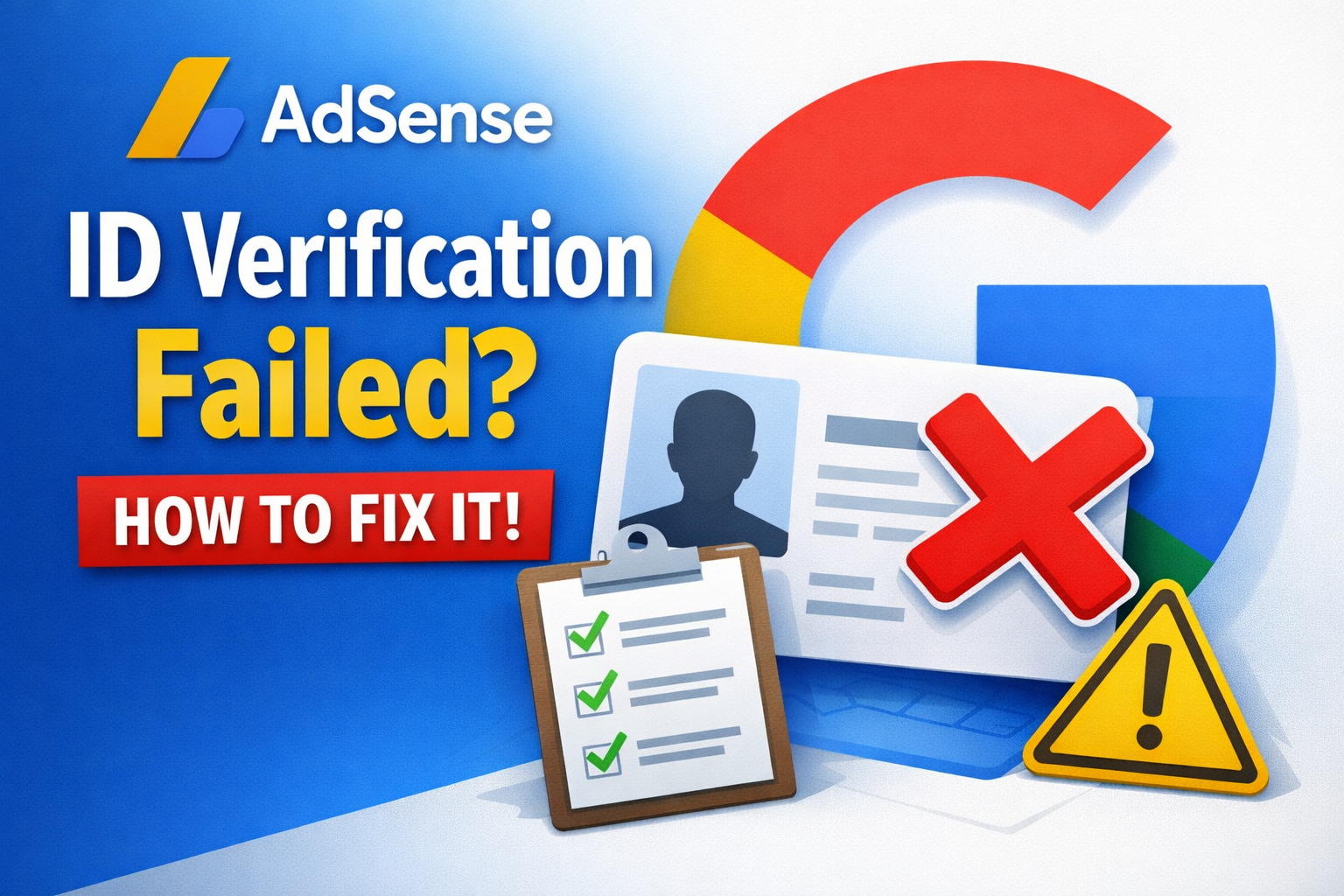
How to Fix Failed ID Verification in Google AdSense (Complete Guide)
1. Check Why Verification Failed
Google usually tells you if the problem was:
- Blurry, cropped, or low-quality document photo
- Name mismatch between your ID and your AdSense account
- Expired or unsupported document
- Wrong address info
If you get a message like “We were unable to verify your identity…”, this is why. �
ggadsense.com
2. Prepare a Valid, Clear ID Document
Use one of these accepted government IDs:
- International Passport
- Driver’s License
- National ID Card (e.g., Nigeria’s NIN with photo)
Make sure:
- The full document is visible (all four corners).
- The photo is sharp, not blurred.
- It’s not expired.
- It’s a physical ID, not a screenshot or “virtual-only” version.
3. Ensure Account Details Match Your ID
Before uploading:
- Go to Payments > Settings in your AdSense dashboard.
- Confirm the Payee name exactly matches your ID (same spelling & order).
- Confirm your address details are correct.
If they don’t match, correct them first — even small differences (like missing middle names) can cause rejection.
4. Upload Your Documents Carefully
When uploading:
- Use good natural light — avoid shadows and glare.
- Don’t use flash if it causes reflections.
- Save the file in a supported format (JPG/PNG).
- Keep the file size within limits.
5. Submit a New Verification Attempt
Follow these official Google steps:
- Go to your AdSense dashboard: https://www.google.com/adsense
- Sign in and look for the “Verify Your Identity” prompt.
- Upload the corrected ID images.
- Google usually reviews it within 2–3 business days.
6. What to Do if You Don’t See a Submission Option
If your account doesn’t show the upload button:
- Try the Identity Verification Troubleshooter (must be signed in): https://support.google.com/adsense/troubleshooter/7582219
- This tool will guide you through steps and may unlock a new chance to submit.
- If that still doesn’t work and you see a message like “contact us”, it means the standard retries are exhausted and you need support help.
7. Contact Google AdSense Support
If you can’t re-submit or your account says verification is permanently blocked:
- Use the official contact form for identity issues:
https://support.google.com/adsense/contact/Identity_verification
- Important: You must be signed into the same Gmail account linked to your AdSense.