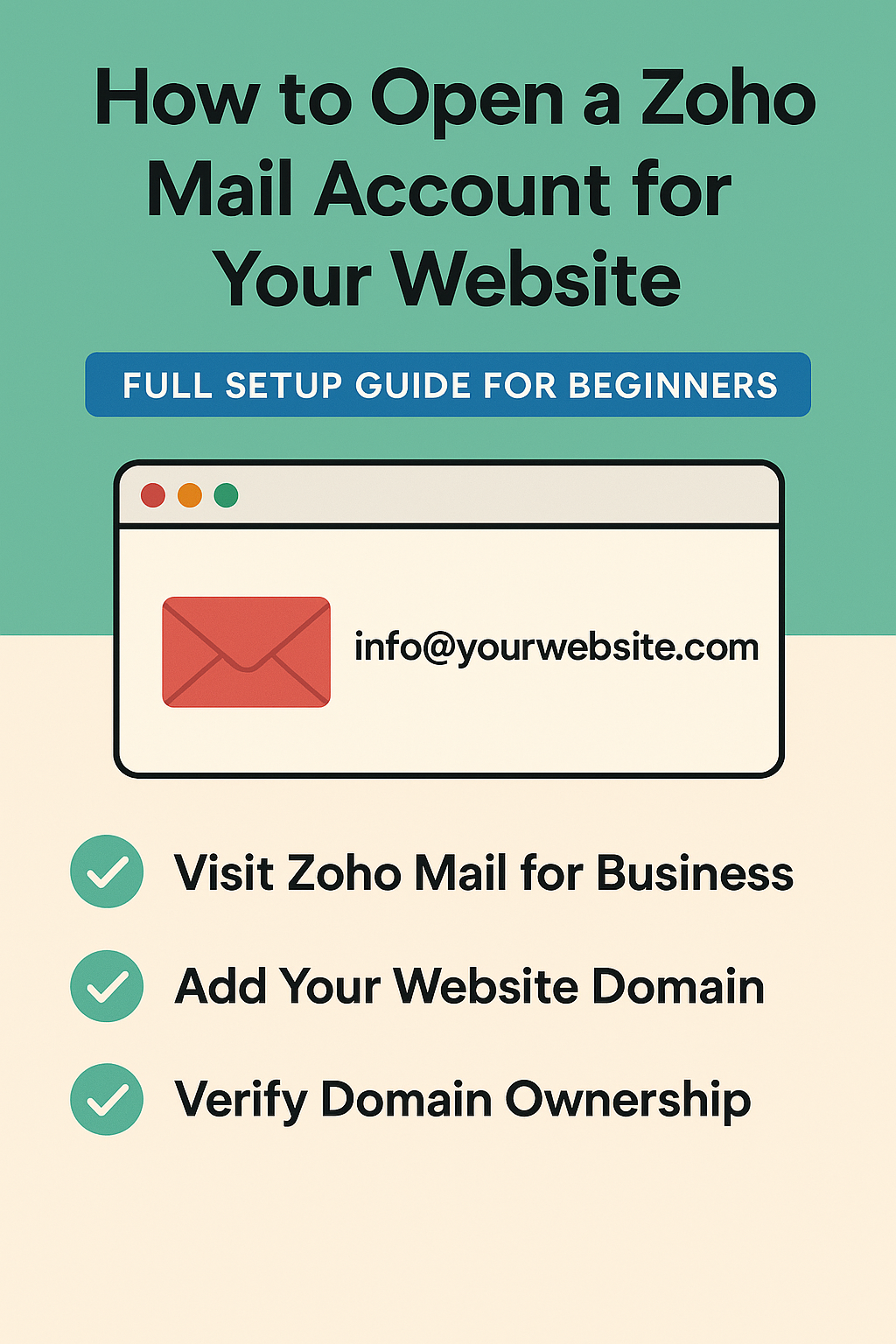
How to Open a Zoho Mail Account for Your Website: Full Setup Guide for Beginners
If you want a professional email address like [email protected], Zoho Mail is one of the best free business email services you can use. It is highly secure, fast, and easy to integrate with any domain name. In this guide, you’ll learn how to open a Zoho Mail account for your website, verify your domain, and set up your custom email in a few minutes.
What Is Zoho Mail?
Zoho Mail is a business email hosting service that allows you to create a custom domain email (e.g., [email protected]) for free. It is ideal for bloggers, startups, small businesses, and website owners who want a professional communication channel without paying monthly fees.
Step 1: Visit Zoho Mail for Business
To get started, visit the Zoho Mail Business signup page.
- Click Sign Up
- Choose the Free Plan (Forever Free – up to 5 users)
- Create a new Zoho account if you don’t already have one
- This gives you access to all the tools needed to host your website’s email.
Step 2: Add Your Website Domain
Once your account is created, Zoho will ask you to add your domain name.
Type your domain, for example:
- yourwebsite.com
- Click Add to proceed.
Step 3: Verify Your Domain Ownership
Zoho must confirm that you own the domain. The easiest way is by adding a TXT record in your DNS panel.
How to Verify via TXT:
1. Log into your domain host (Namecheap, GoDaddy, Hostinger, WhoGoHost, Bluehost, etc.)
2. Open DNS Manager
3. Click Add New Record
4. Select TXT
5. Paste the unique TXT value provided by Zoho
6. Save changes
7. Return to Zoho and click Verify
Once verified, you can create your custom email users.
Step 4: Create Your Custom Email Address
Now you can create your email identity.
Examples:
This will be your official email for business use.
Step 5: Set Up Zoho MX Records (Important)
For your email to send and receive messages, you must add Zoho’s MX records to your DNS settings.
Common Zoho MX records:
Priority Value
10 mx.zoho.com
20 mx2.zoho.com
50 mx3.zoho.com
Steps:
1. Go to your domain DNS Manager
2. Delete any existing MX records
3. Add the three Zoho MX records exactly as shown
4. Save and return to Zoho to verify
Once verified, your email becomes fully active.
Step 6: Enable SPF, DKIM & DMARC (Recommended)
These DNS settings protect your domain and keep your emails out of spam folders.
- SPF: Helps mail servers verify your emails
- DKIM: Adds a security signature
- DMARC: Prevents spoofing and improves deliverability
You’ll find all required records inside your Zoho Mail Admin Console.
Step 7: Log In to Your Email
To access your new mailbox:
- Visit: mail.zoho.com
Enter your new email address and password. - Your Zoho Mail inbox will open, and you can start sending professional emails instantly.
Why Choose Zoho Mail for Your Website?
- Free plan available
- Ad-free and privacy-focused
- Works with all websites and hosting companies
- Simple setup
- Mobile apps for Android and iOS
- Reliable and secure
Whether you run a blog, ecommerce site, or small business, Zoho Mail is a great choice for custom email hosting.
Conclusion
Setting up a Zoho Mail account for your website is quick and beginner-friendly. With domain verification, MX configuration, and optional security records, you can build a professional communication system for your brand at zero cost.