How to Set Up Your Google Search Console: A Complete Step-by-Step Guide for Beginners
Google Search Console (GSC) is one of the most powerful free SEO tools every website owner must use. Whether you run a blog, business website, portfolio, or news platform, GSC helps you understand how Google views your site, monitor search performance, fix errors, and improve your ranking. Setting it up correctly is the first and most important step in building long-term search success.
This guide explains how to set up Google Search Console, verify your site, submit your sitemap, and start using its features all in a clear and practical way.
What Is Google Search Console and Why Is It Important?
Google Search Console is a free tool from Google that allows you to track your website’s search visibility. It tells you:
-
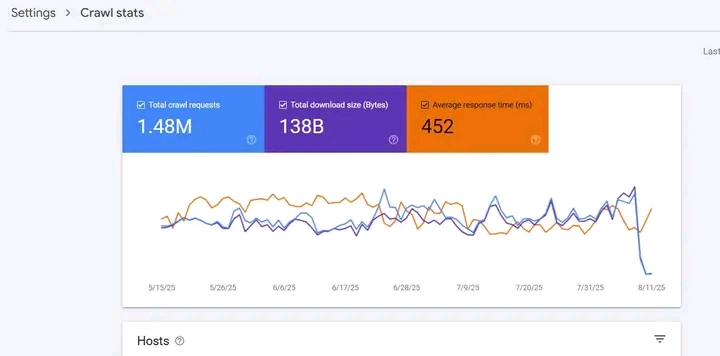
How Google crawls and indexes your pages
-
What keywords your site ranks for
-
How many people click your site on Google
-
Any errors affecting your ranking
-
Mobile usability issues
-
Security problems like hacking or malware
GSC is the “eye” of Google into your website. Without it, you’re running blind and missing valuable SEO insights. If you want your website to grow, get more traffic, and appear on Google News or organic search, setting up GSC is essential.
Step 1: Visit the Google Search Console Website
- Start by visiting the GSC homepage:
search.google.com/search-console - Click on Start Now.
If you are not logged in, GSC will ask you to sign in with your Gmail account.
Step 2: Sign in With Your Google Account
- Use any Gmail account you use for your website, business, or SEO tools.
If you don’t have one, you can easily create a new Gmail account. - Once logged in, you will be taken to the “Add Property” page.
Step 3: Choose Your Property Type
Google gives two ways to add your website:
1. Domain Property (Recommended for full tracking)
Example: example.com
This option tracks everything under your domain, including:
http://
https://
www
non-www
Subdomains
Mobile versions
This is perfect for professional websites and SEO tracking.
2. URL Prefix (Beginner-friendly)
Example: https://example.com
This verifies only the specific URL version.
- It’s easier to set up and perfect for beginners, but may miss variations.
- Choose the option that fits your technical level.
Step 4: Verify Your Website Ownership
- Google needs to confirm that you truly own the website.
- Verification is required before GSC can begin tracking your data.
Here are the verification methods you can use:
SECTION A
DNS Verification (Best for Domain Property)
Most recommended for long-term SEO accuracy.
STEPS:
1. Google will give you a TXT record.
2. Log into your domain host (Truehost, Hostinger, Namecheap, Whogohost, Garanntor, etc.).
3. Go to DNS Management.
4. Add a new TXT record.
5. Paste the value Google gave.
6. Save and return to GSC.
7. Click Verify.
DNS changes may take minutes or hours to reflect, depending on your provider.
SECTION B
HTML File Upload (For URL Prefix)
This is the easiest method if you have cPanel or FTP access.
STEPS:
1. Download the HTML verification file from GSC.
2. Upload it to your website root folder (public_html).
3. Return to GSC and click Verify.
SECTION C
HTML Tag Method (Easy for WordPress)
STEPS:
1. Copy the HTML meta tag.
2. Paste it inside thesection of your website.
3. Save your changes and click Verify.
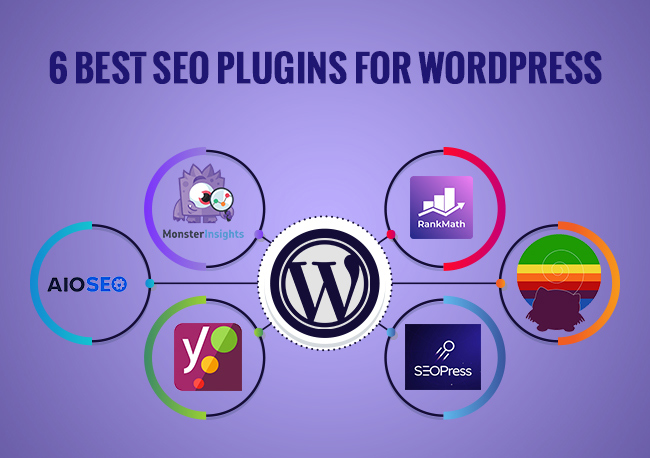
For WordPress users, you can add it through:
-
Rank Math
-
Yoast SEO
-
All in One SEO
Insert Headers and Footers plugin
SECTION D
Google Analytics or Tag Manager
If your site already has Google Analytics or GTM installed, you can verify instantly.
Step 5: Submit Your Sitemap to Google
Submitting your sitemap is one of the most important steps after verification.
Your sitemap tells Google which pages to crawl and index.
STEPS:
1. In GSC dashboard, click Sitemaps.
2. Enter your sitemap URL:
For most websites: sitemap.xml
For WordPress Yoast SEO: sitemap_index.xml
For Rank Math: sitemap_index.xml
3. Click Submit.
When Google accepts it, you will see a green success message.
Step 6: Check Indexing Status
After submitting your sitemap, you should check whether your pages are indexed.
Go to:
Indexing → Pages
You will see:
Indexed pages
Not indexed pages
Crawled but not indexed
Discovered but not indexed
If some important pages are missing, you can request indexing manually.
Step 7: Analyze Your Website Performance
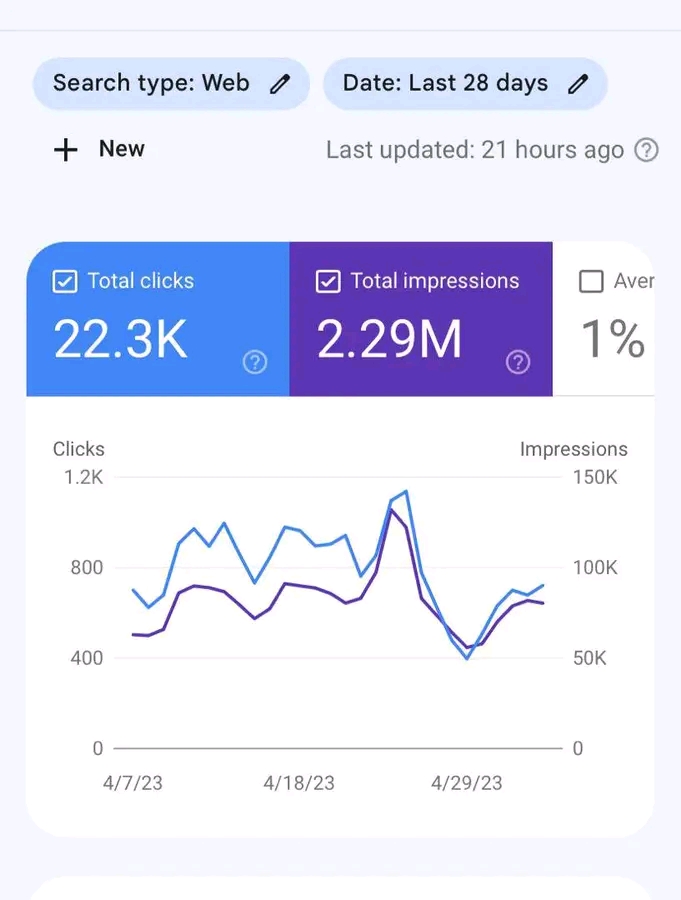
The Performance tab gives you powerful SEO insights, including:
-
Total clicks
-
Total impressions
-
Click-through rate (CTR)
-
Average ranking position
-
Queries (keywords your site is ranking for)
-
Top pages
-
Countries and devices
This helps you understand what content is ranking well and where to focus your SEO efforts.
Step 8: Fix Website Issues Using GSC
Google Search Console also helps you identify and fix problems such as:
1. Mobile Usability Errors
-
Text too small
-
Elements too close
-
Content wider than screen
-
These must be fixed for better user experience.
2. Coverage Errors
Common issues include:
-
404 Not found
-
Server errors (5xx)
-
Blocked by robots.txt
-
Duplicate pages
-
Redirect errors
Fixing these improves your crawlability and ranking.
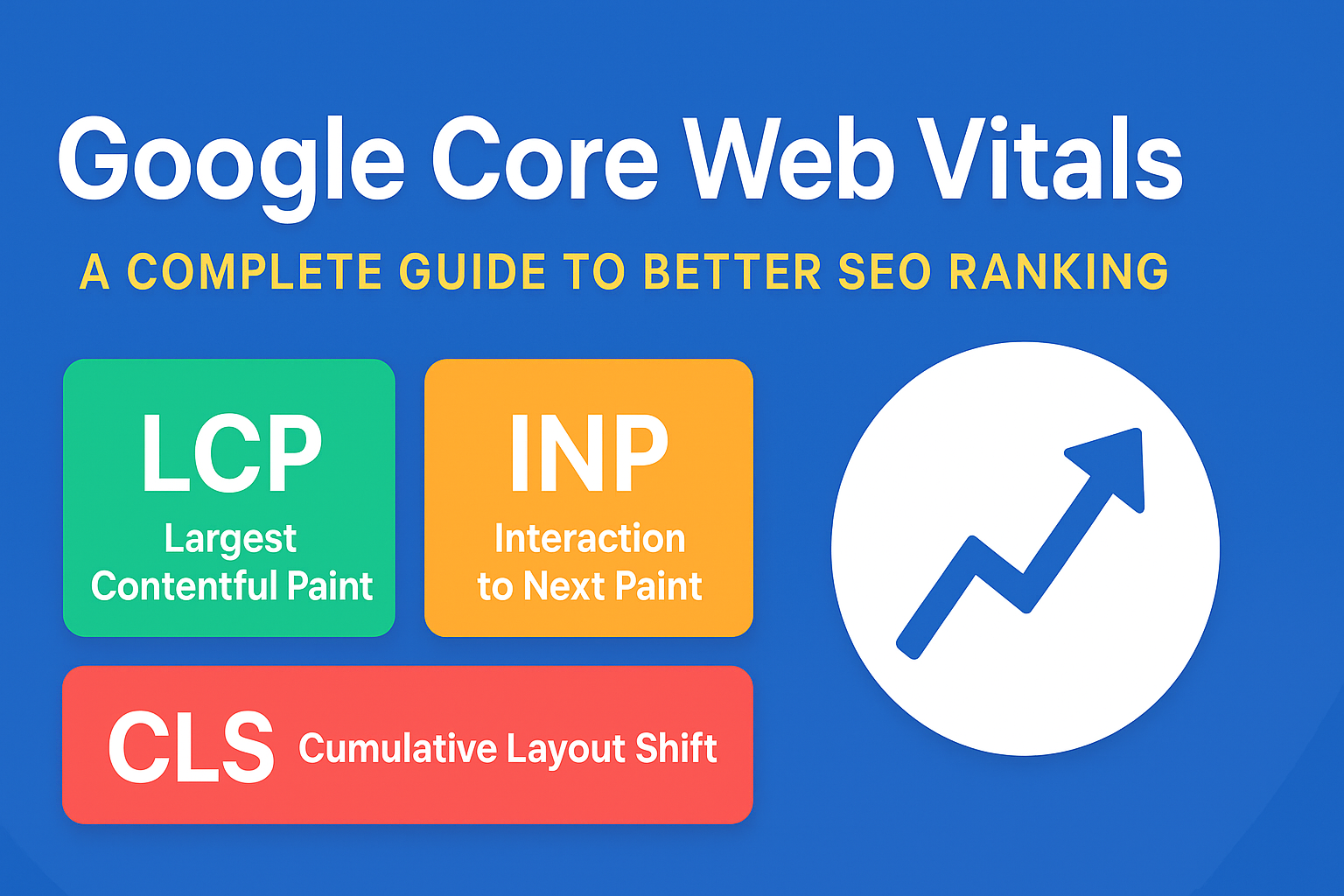
3. Core Web Vitals
- Google measures your site speed and loading experience.
- Poor scores may hurt your SEO.
4. Security Issues
If your site has malware, spam, or hacking attempts, GSC will alert you.
Step 9: Re-submit Pages After Fixing Issues
Whenever you update a page or fix an error, use the URL Inspection Tool.
Steps:
1. Paste your URL in the search bar.
2. Click Request Indexing.
3. Google will re-crawl the page faster.
This is important for news blogs, new posts, and urgent updates.
Final Thoughts
Setting up Google Search Console is essential for any website that wants to grow in Google search. It gives you accurate data about how your site performs, helps you fix issues, and provides valuable keyword insights. Whether you are a blogger, business owner, freelancer, or news publisher, GSC gives you the tools you need to improve your SEO and increase organic traffic.
Once set up, check your GSC dashboard at least two or three times a week.
Monitor your performance, fix errors quickly, and use the keyword data to improve your content strategy.